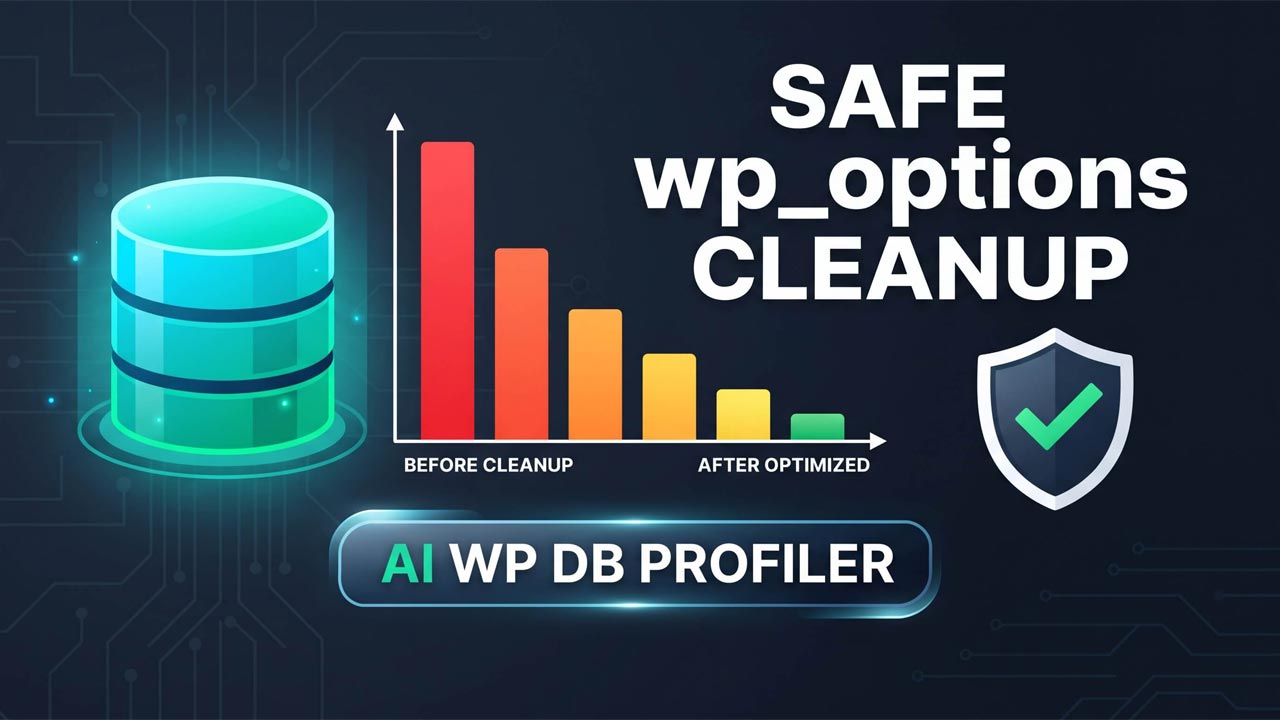
AI WordPress Database Profiler: Safely Detect & Clean Up wp_options Autoload Bloat
Over months and years of installing plugins, testing page builders, and running imports, the wp_options table quietly collects megabytes of autoloaded data. Because WordPress preloads autoloaded rows into memory on every request, heavy autoload payloads drive up memory usage and slow down Time to First Byte across frontend and admin pages.
An AI-assisted database profiler speeds up cleanup by scanning the largest autoloaded options, mapping option prefixes to active or uninstalled plugins, and flagging low-risk candidates—while leaving final deletion or autoload toggles under human approval.
Safety Rule: Always take a database backup first, never touch core essentials like
siteurl,home,active_plugins, orwp_user_roles, and flip non-critical active options off before deleting orphaned rows.
| Profiler Stage | What It Inspects | Safe Action |
|---|---|---|
| 1. Size Scan | Total autoloaded byte size and top largest option_name rows | Rank heavy entries that contribute most to memory overhead |
| 2. AI Classification | Option name patterns, value shapes, and active plugin list | Label likely orphaned rows, admin-only settings, or protected core keys |
| 3. Staged Cleanup | Confirmed non-critical or leftover plugin options | Disable autoload first; delete orphans only after verification |
How an AI Autoload Profiler Helps
Raw database metrics tell you which rows are huge, but dozens of cryptic option names still take time to identify. An AI profiler pairs aggregate size telemetry with structured classification so you can group rows by likely origin, spot stale caches or logs, and separate admin-only settings from site-wide essentials.
- Focus on heavy hitters first: A handful of large serialized arrays, logs, or cached payloads usually account for most of the bloat.
- Separate active vs. orphaned prefixes: Options tied to deleted plugins are prime cleanup targets once verified, whereas active plugin options should be reviewed carefully.
- Prefer turning autoload off over blind deletion: Disabling autoload on an admin-only option stops preloading on every page while keeping its stored value intact.
Safe Cleanup Workflow
- Back up the database: Export a clean SQL or snapshot backup before modifying
wp_optionsrows. - Run the profiler and review recommendations: Inspect the largest autoloaded options, check Site Health autoload warnings, and verify any AI-suggested labels against your actual plugin list.
- Disable autoload on non-critical active options: Turn autoload off for settings only needed in specific screens or background tasks, then test frontend and admin flows.
- Prune confirmed orphans and re-measure: Remove verified leftover options from uninstalled plugins, clear caches, and re-check total autoload size.
Keeping Autoload Lean Long Term
- Audit after plugin removals: Check for leftover options whenever you test and delete heavy plugins.
- Avoid storing raw logs or large datasets in options: Keep large or high-volume records out of autoloaded options so startup queries stay fast.
- Schedule monthly checks: Re-run your profiler periodically to catch new bloat early before it compounds.
Quick FAQ
Does turning off autoload delete the option’s data?
No. Turning off autoload simply stops WordPress from loading that option automatically on every request; it can still be read when needed.
Should an AI tool delete wp_options rows automatically without review?
No. Use AI to summarize and prioritize candidate rows, while requiring explicit human confirmation before deleting records or altering core configuration options.